


Lesson 1: Getting Familiar with Microsoft Word 2016 for Windows
Microsoft Word is a word processing software package. You can use it to type letters, reports, and other documents. This tutorial teaches Microsoft Word 2007 basics. Although this tutorial was created for the computer novice, because Microsoft Word 2007 is so different from previous versions of Microsoft Word, even experienced users may find it useful. This lesson will introduce you to the Word window. You use this window to interact with Word. To begin this lesson, open Microsoft Word 2007. The Microsoft Word window appears and your screen looks similar to the one shown here.
Introduction to Microsoft Word 2007 – Lesson One
Note: Your screen may not look exactly like the screenshots shown. In Word 2007, the way the window displays depends on:
- The size of your Word window
- Your monitor size
- Your screen resolution
Screen resolution determines how much information your monitor can display.
- Low resolution: Larger text and images, less information on screen
- High resolution: Smaller text and images, more information on screen
Word 2007, Windows Vista, and Windows XP allow you to change window colors and styles, which may affect how your screen looks.
The Microsoft Office Button
In the upper-left corner of the Word 2007 window is the Microsoft Office Button.
When you click it, a menu appears that allows you to:
- Create a new document
- Open an existing document
- Save your work
- Perform many other file-related tasks

The Quick Access Toolbar
Next to the Microsoft Office Button is the Quick Access Toolbar.
- Gives fast access to commonly used commands
- By default, it includes Save, Undo, and Redo
You can use it to:
- Save – store your document
- Undo – reverse an action
- Redo – reapply an action you undid

The Title Bar
The Title Bar is located next to the Quick Access Toolbar.
- Displays the name of your current document
- New documents are named Document1, Document2, etc.
- Once saved, the document name changes to your chosen name

The Ribbon
Commands in Word 2007 are organized on the Ribbon.
- Located below the Quick Access Toolbar
- Contains tabs like Home, Insert, View
- Each tab contains groups of related commands
- Groups contain buttons and sometimes a dialog box launcher

Clicking a dialog box launcher opens additional options in a dialog box.
The Ruler
The Ruler appears below the Ribbon and is used to:
- Adjust margins
- Set indents
- Change alignment
View the Ruler
If not visible:
- Click the View tab
- In the Show/Hide group, check Ruler
- The ruler appears below the Ribbon

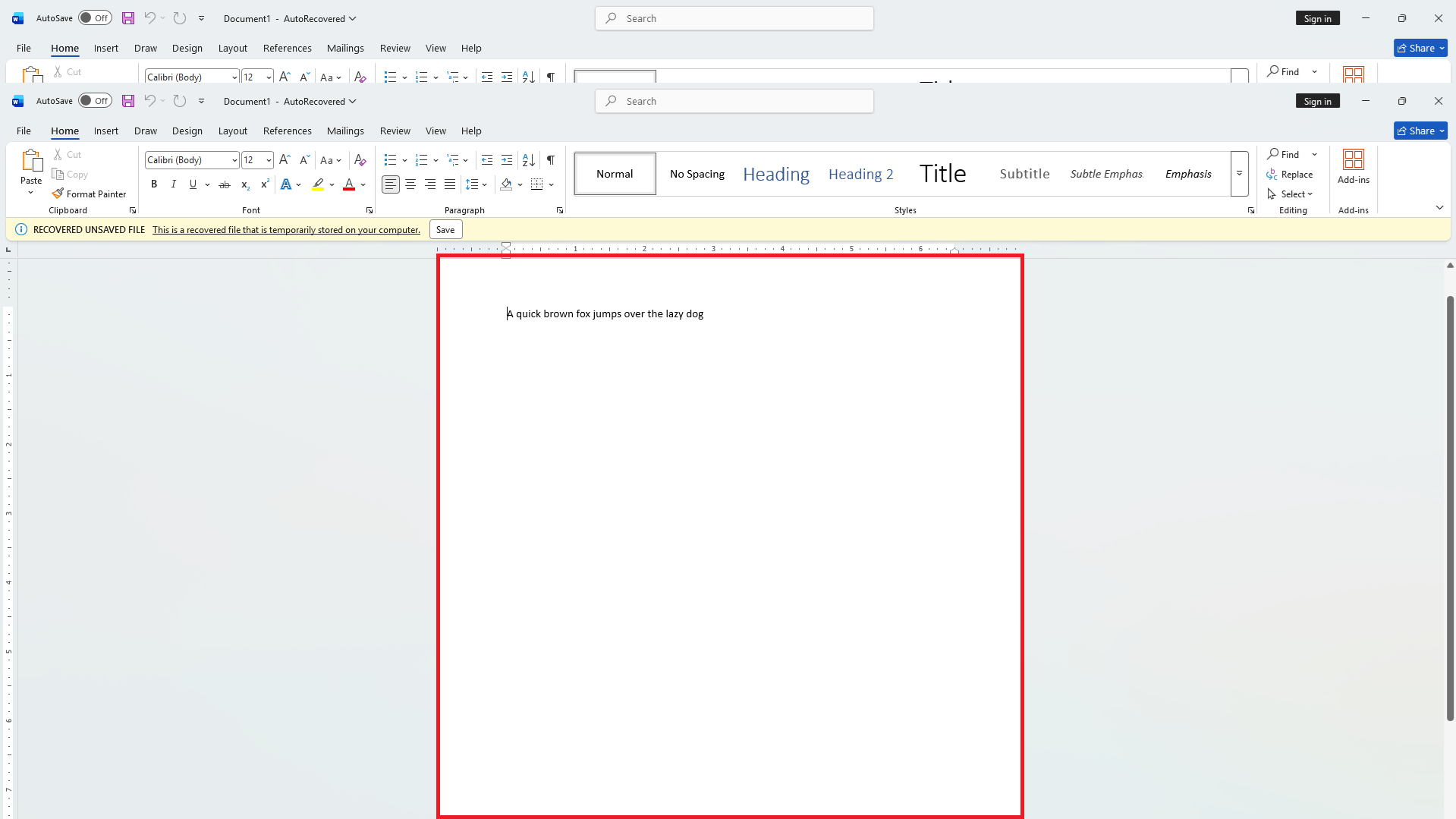
The Text Area
Below the ruler is the Text Area.
- Where you type your document
- The blinking vertical line is the cursor (insertion point)
- Text appears wherever the cursor is positioned
Scroll Bars
Word uses vertical and horizontal scroll bars:
- Vertical scroll bar: Right side, moves up/down
- Horizontal scroll bar: Above the status bar, moves left/right
Horizontal scroll may not appear if the document fits the screen width.

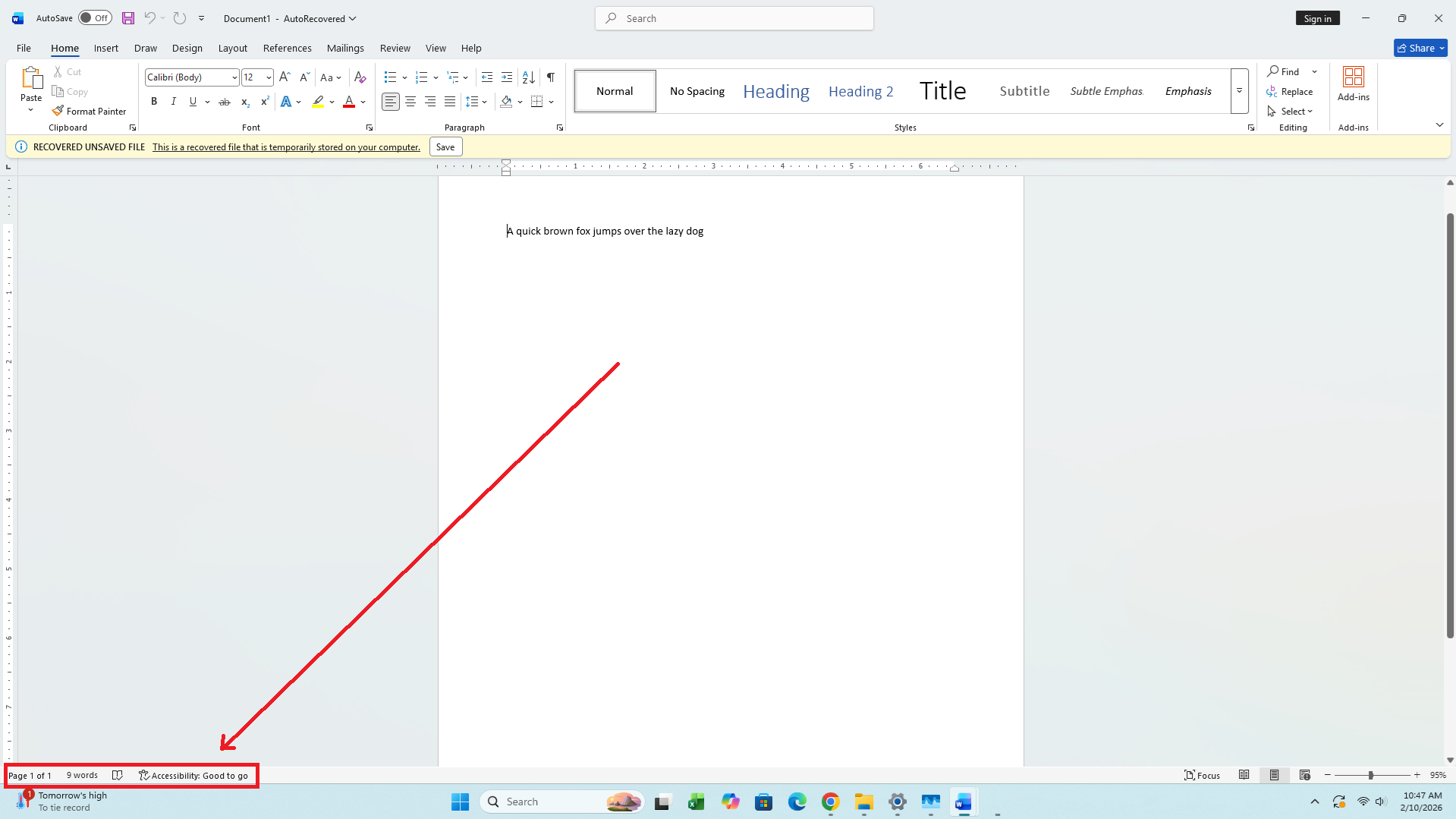
The Status Bar
The Status Bar appears at the bottom of the Word window.
- Shows current page, word count, and more
Customize the Status Bar
- Right-click the Status Bar
- Select/deselect items from the menu
- A checkmark means the item is displayed
Understanding Document Views
Word 2007 offers multiple views:
- Draft View: Best for quick editing
- Web Layout: Shows document as a web page
- Print Layout: Shows how it will look printed
- Reading Layout: Optimized for comfortable reading
- Outline View: Displays document structure using headings
Use Draft View for These Lessons
- Click the View tab
- Click Draft in the Document Views group

Mouse Actions Used in This Tutorial
- Click: Press left mouse button once
- Double-click: Press left mouse button twice quickly
- Right-click: Press right mouse button once
- Choose a tab: Click the tab on the Ribbon

Understanding Nonprinting Characters
Nonprinting characters do not print but affect formatting.
| Character | Meaning |
|---|---|
| → | Tab |
| · | Space |
| ¶ | End of paragraph |
| (Hidden) | Hidden text |
Show Nonprinting Characters
- Click the Home tab
- Click Show/Hide (¶) in the Paragraph group
- Button appears highlighted when enabled

Creating Sample Data and Selecting Text
Typing =rand() and pressing Enter generates sample text.
EXERCISE 1: Create Sample Data
- Type
=rand() - Press Enter
- Three paragraphs appear

Select Text Using Keyboard
- Place cursor before “On” in first paragraph
- Hold Shift
- Press Right Arrow to highlight
- Press Down Arrow to select paragraph
- Click anywhere to deselect

Select Text Using Mouse
- Place cursor before “You” in second paragraph
- Hold left mouse button
- Drag to highlight paragraph
- Click anywhere to deselect

Placing the Cursor
- Click in desired location or use arrow keys
- Type at the cursor location

EXERCISE 2: Practice Cursor Movement
- Down Arrow: Move down
- Up Arrow: Move up
- Left Arrow: Move left
- Right Arrow: Move right

Using Keyboard Shortcuts
Example:
- Ctrl + B → Bold text
Hold Ctrl and press B

Starting a New Paragraph
Press Enter to start a new paragraph.

Exiting Microsoft Word
Always save your work before closing.
EXERCISE 3: Close and Save Your Document
Windows 11
- Click the Microsoft Office Button
- Click Exit Word
- Click Yes to save
- Choose folder
- Type Lesson One.doc
- Click Save

✅ Lesson One Complete!